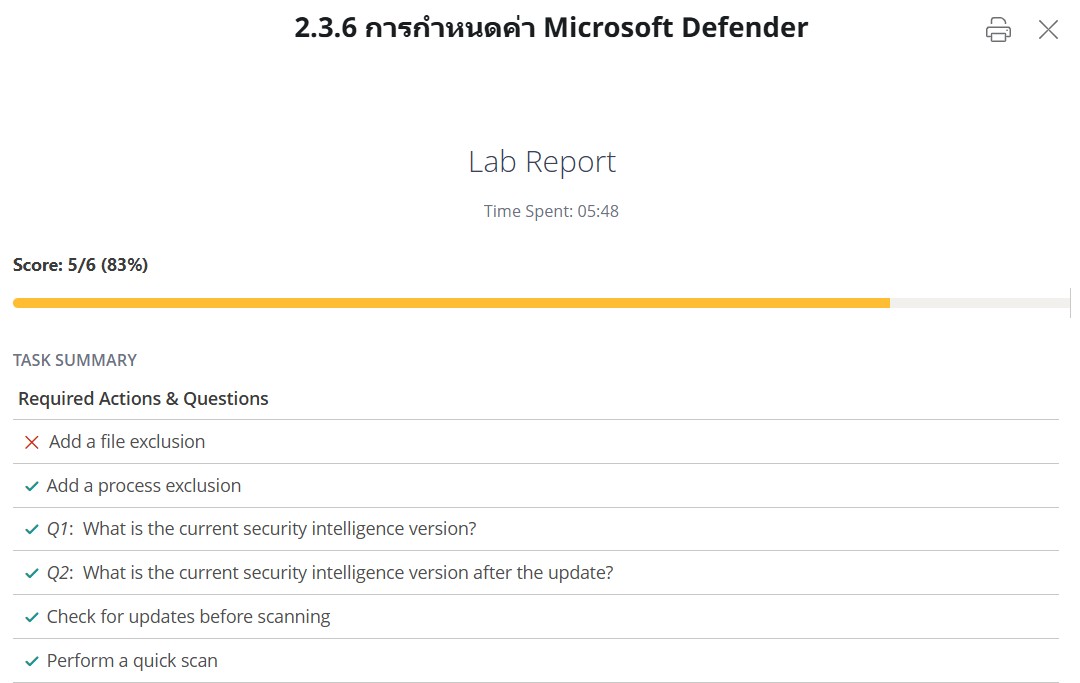
— กำหนดค่า Microsoft Defender —
✅ สิ่งที่ทําในแล็บนี้
ขั้นตอนที่ 1 เปิดโปรแกรม Windows Security
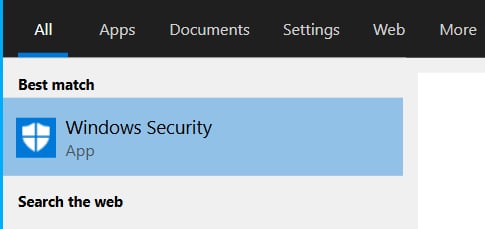
คลิกที่ช่อง Type here to search บริเวณแถบงาน (Taskbar) ด้านล่างของหน้าจอ
เป็นช่องค้นหาของระบบ Windows ใช้ค้นหาโปรแกรมและการตั้งค่าต่าง ๆ
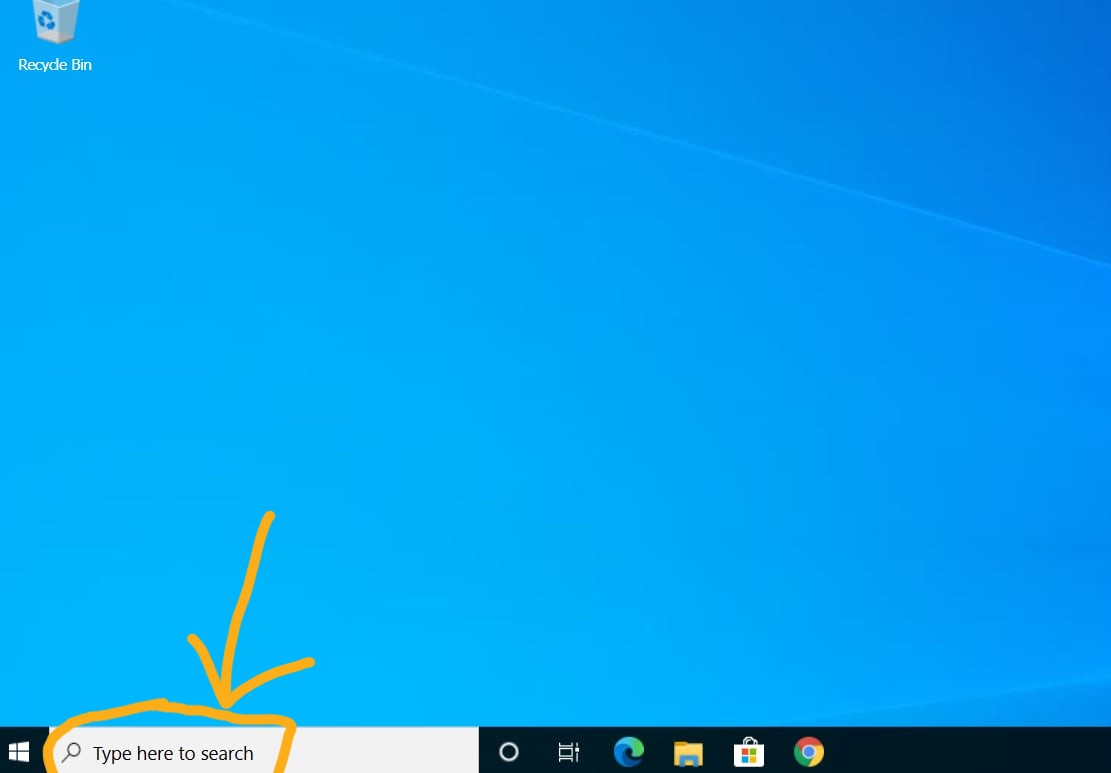
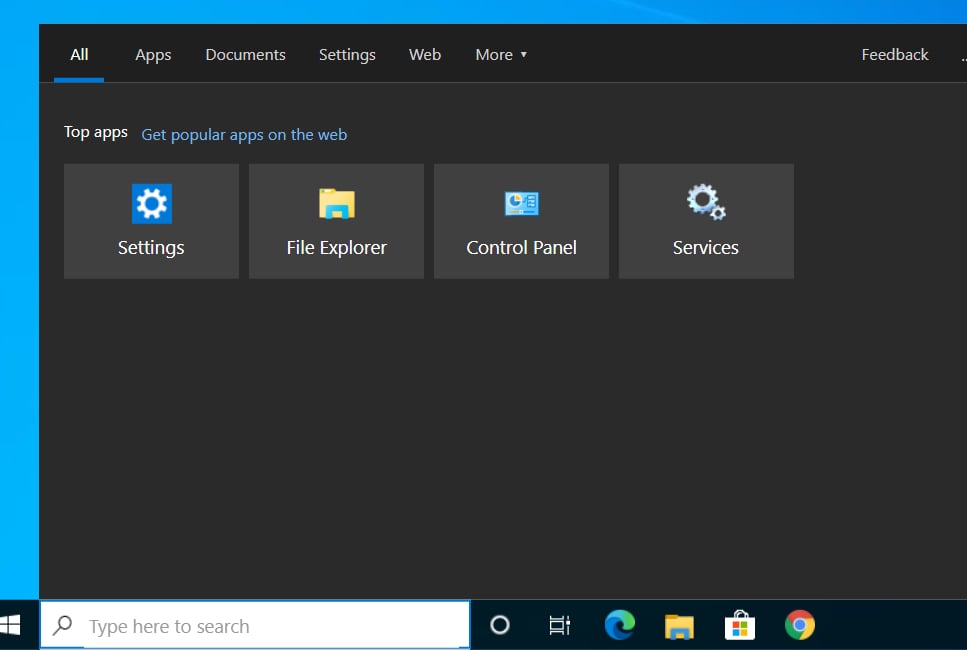
พิมพ์คำว่า
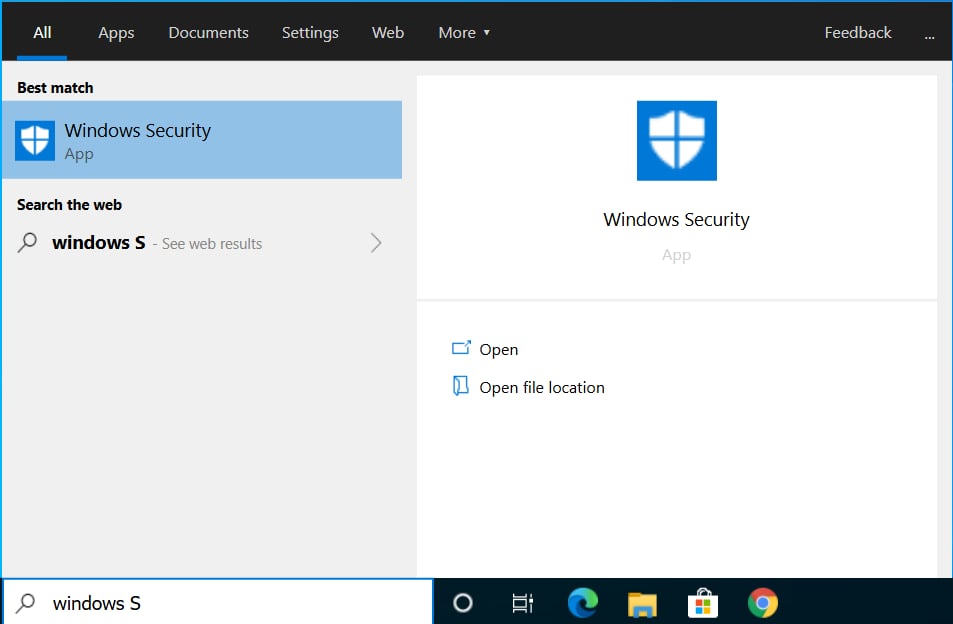
Windows Security
เมื่อแอป Windows Security ปรากฏขึ้น ให้คลิกเพื่อเปิดโปรแกรม
วิธีที่ 2 (จากหน้า Security at a glance)
ที่หน้า Security at a glance
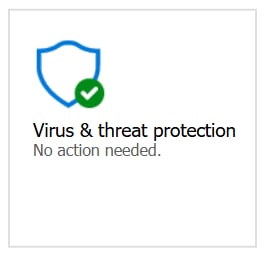
ให้มองหาหัวข้อ Virus & threat protection
คลิก Virus & threat protection
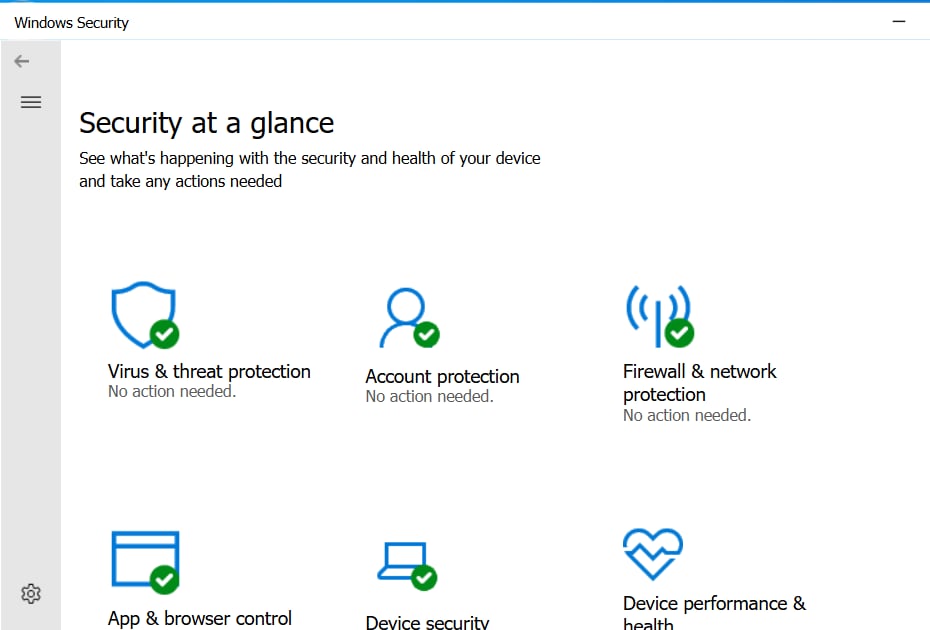
อยู่หน้า Security at a glance
ในหน้า Virus & threat protection
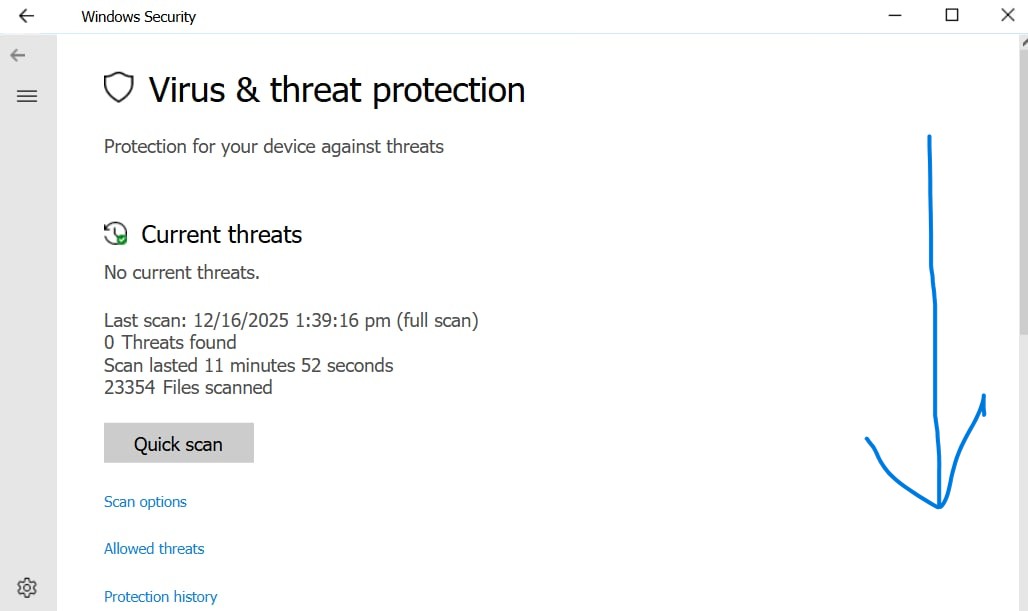
ให้เลื่อนลงหา Virus & threat protection settings
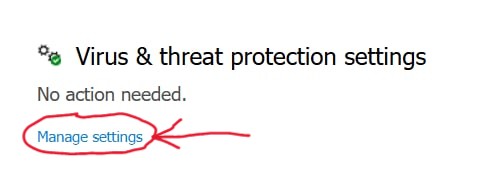
คลิก Manage settings
ปุ่มนี้คือ “เข้าไปตั้งค่าการป้องกัน”
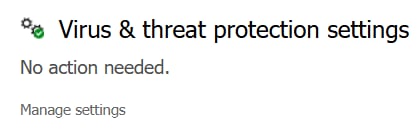
ตรวจดูสวิตช์สำคัญ (ถ้า OFF ให้คลิกให้เป็น ON)
Real-time protection = ON
ป้องกันไวรัสแบบเรียลไทม์
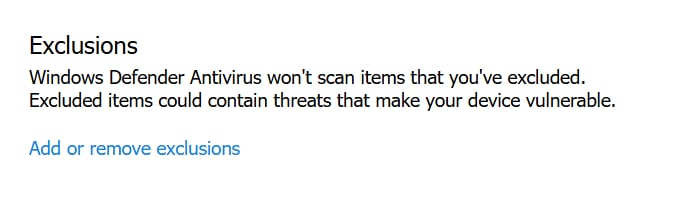
ยังอยู่หน้า Manage settings ให้เลื่อนลงหา Exclusions
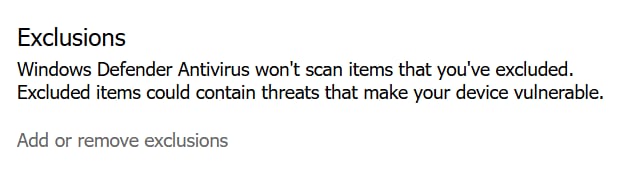
ให้คลิก Add or remove exclusions
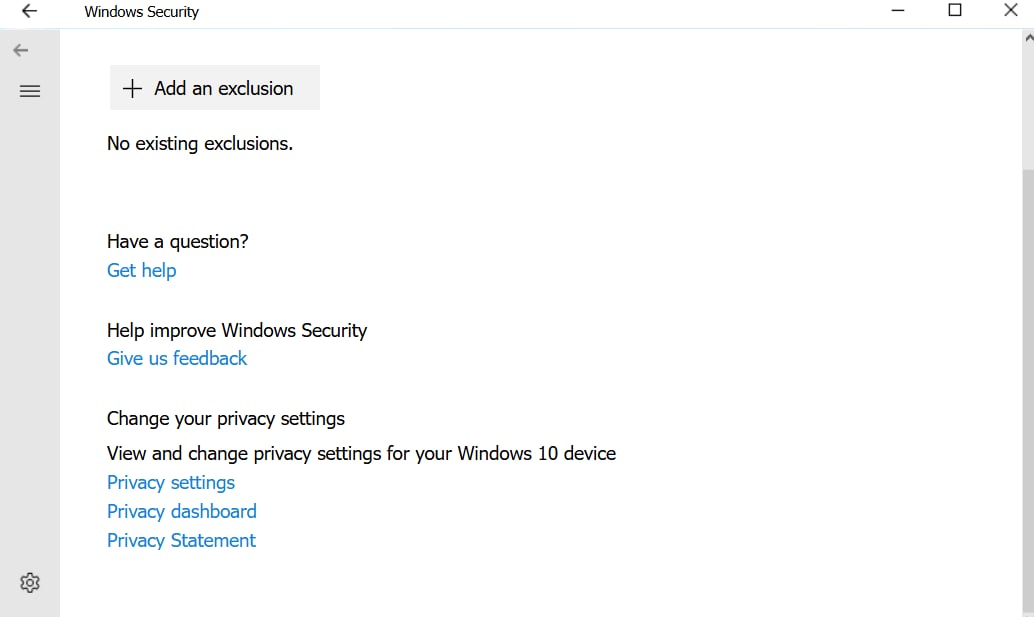
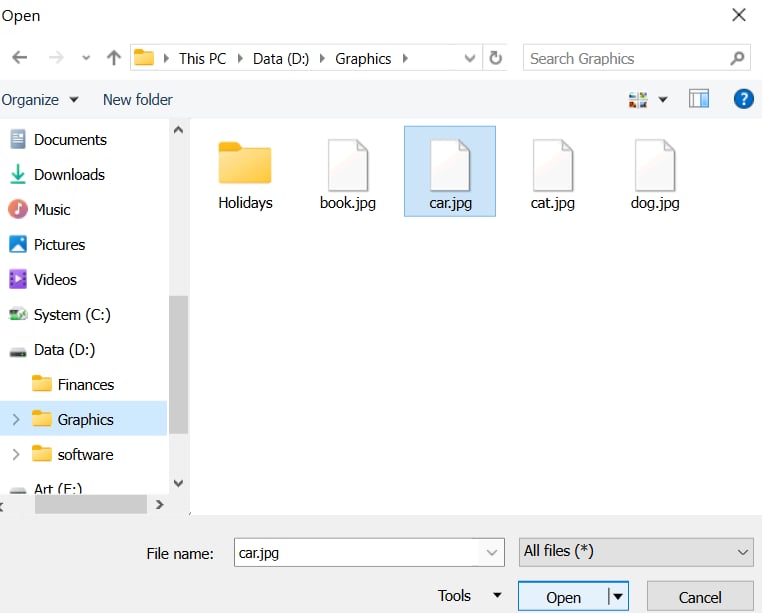
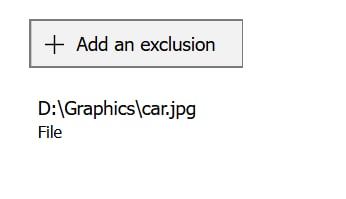
คลิก + Add an exclusion + เลือก File
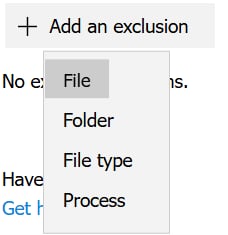
หน้าต่างเลือกไฟล์จะเด้งขึ้นมา ให้ไปตามเส้นทางนี้:
คลิก This PC
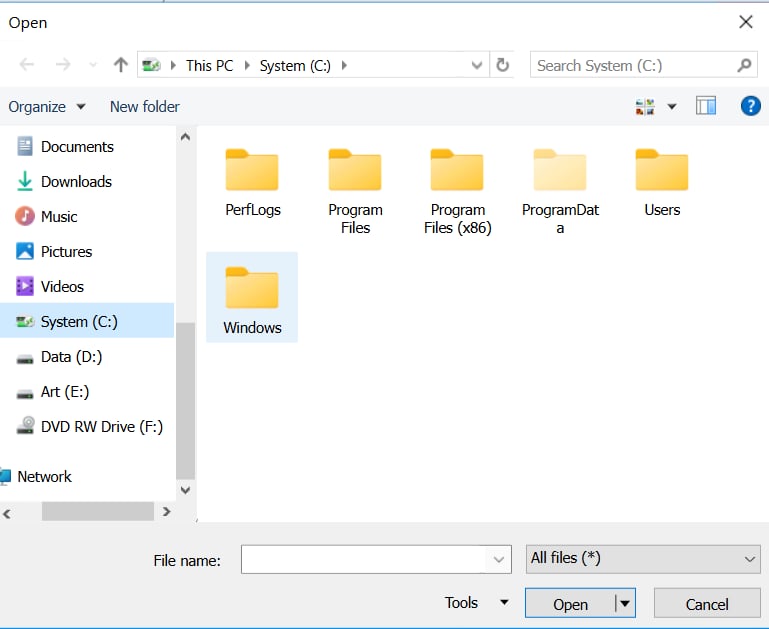
ดับเบิลคลิกไดรฟ์ D:
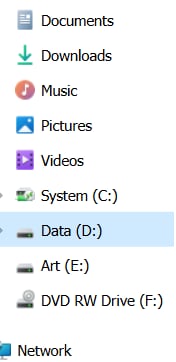
ดับเบิลคลิกโฟลเดอร์ Graphics
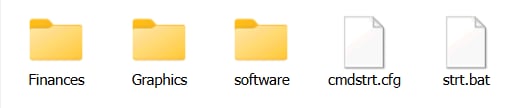
คลิกไฟล์ cat.jpg

คลิก Open

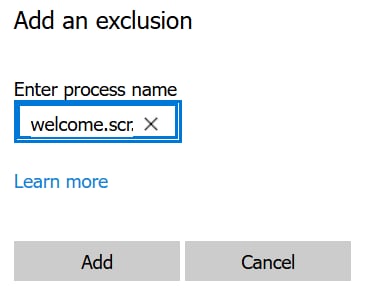
เพิ่มการยกเว้นกระบวนการ welcome.scr
ยังอยู่หน้า Add or remove exclusions
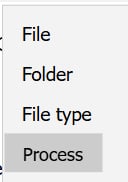
คลิก + Add an exclusion

เลือก Process
พิมพ์:
welcome.scr
กด Add (หรือกด Enter)
ต้องเห็นรายการเพิ่มเป็น welcome.scr
กด Back กลับมาหน้า Virus & threat protection
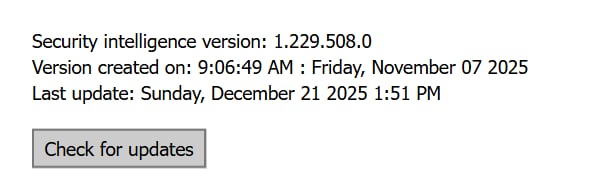
ให้คลิก Quick scan
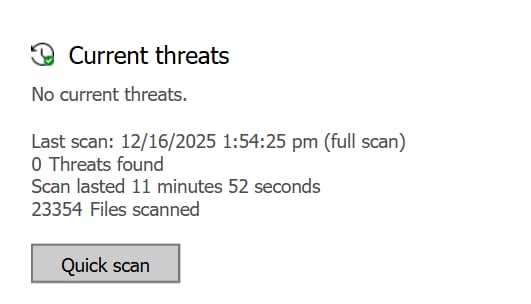
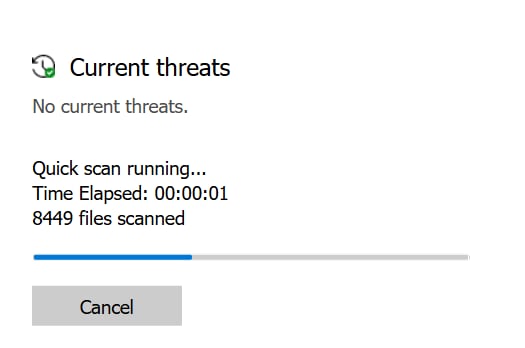
รอจนสแกนเสร็จ แล้วดูผล:
No threats found / No current threats = ไม่พบภัยคุกคาม ถ้าพบภัยคุกคาม จะมีปุ่ม Start actions ให้จัดการ
⭐ สรุปภาพรวม
- ในการทำแล็บนี้ เป้าหมายคือ เรียนรู้การตั้งค่าระบบป้องกันมัลแวร์ใน Windows Security (Windows Defender) ซึ่งเป็นทักษะพื้นฐานที่คนทำงานด้าน Cybersecurity ต้องรู้ โดยเฉพาะเรื่องการ ตั้งค่า Exclusion, ดูเวอร์ชัน Threat Definition, อัปเดตความปลอดภัย, และ สแกนมัลแวร์ ที่เป็นงานประจำของฝ่าย IT Security จากบทเรียน CompTIA Security Pro ได้อธิบายไว้ว่า การป้องกันมัลแวร์ต้องอาศัยหลายอย่าง เช่นการอัปเดตแพตช์, ป้องกันไวรัส, firewall และการฝึกผู้ใช้ให้รู้เท่าทันภัยคุกคาม
แล็บนี้ช่วยให้เราเข้าใจพื้นฐานของการจัดการ Antivirus ใน Windows ได้แก่ 🔹 การเข้าถึง Windows Security 🔹 การตั้งค่า Exclusions อย่างปลอดภัย 🔹 การตรวจสอบเวอร์ชัน Threat Definitions 🔹 การอัปเดตฐานข้อมูลความปลอดภัย 🔹 การทำ Quick Scan เพื่อค้นหาไวรัส